Back to blog
Blog
End the booking chaos today.
30-day free trial. No credit card required.
Blog
30-day free trial. No credit card required.
The file is called Bookings_final_v7_NEW_copy.xlsx. It sits on the treasurer's computer, an older version sits in the club mailbox, and a printout hangs in the groundskeeper's shed.
The spreadsheet itself is fine, spreadsheets are good at ordering things. The trouble is that nobody can say which version is current, and the file is out of reach exactly when someone asks on a Sunday whether the hall is free.
Moving to a shared booking calendar takes less time than most people fear, and nobody has to retype anything. This guide walks through the steps, including the places where it snags. If you want to know what is in the list first, run it through the free booking check: it shows double bookings and utilisation per resource and exports the rows in the import format.
The import runs in two passes, and the order is fixed:
If you only want a clean calendar going forward, skip the second pass and start with an empty future. When the old list is patchy anyway, that is often the quicker decision.
Three columns are required for resources:
| Column | Required | Example |
|---|---|---|
| Name | yes | Club minibus |
| Category | yes | Vehicles |
| Location | yes | Club grounds |
| Description | no | 9 seats, tow bar |
| Contact person | no | Anna Vogt |
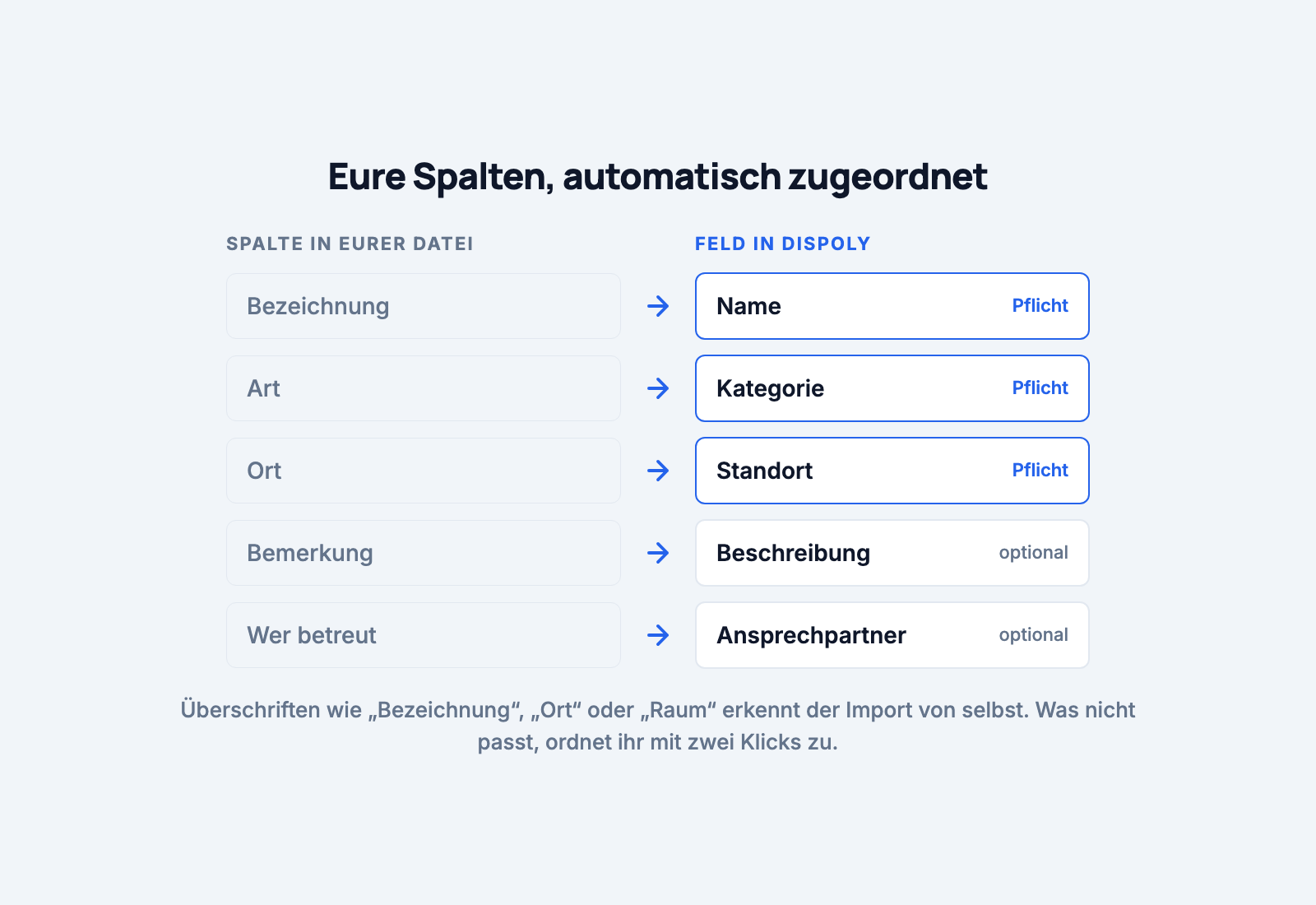
You do not have to rename your headers. The import recognises common variants on its own: "Title", "Resource" or "Object" become the name, "Contact" becomes the contact person. Where the match is ambiguous, you fix it in the next step with two clicks.
If you would rather start from scratch: the import offers Download template. That is a CSV with the right headers and two example rows.
You do not need to create categories and locations beforehand. One option creates missing ones automatically, and the same applies to contact persons.
In Dispoly, open Import and choose Import resources. Then drop the file, as CSV or Excel (.xlsx), up to 5 MB and 2,000 rows.
The wizard then shows your columns on the left and the fields on the right, with a suggestion for each mapping. Go through the suggestions once and correct whatever does not fit. Columns you do not need stay on "Not mapped" and are left out.
You can only continue to the preview once every required field is mapped.
The preview is the step people most like to skip. It shows every row with a status:
Above it sits a summary along the lines of "18 ready, 2 with errors, 1 with warnings". Check that number against your list before you import.
The options live here too: create missing categories, locations and contact persons automatically, and skip rows whose name already exists. The last one is useful when you run a second pass with an extended list. With it switched off, a row with a known name only gets a warning and is created as a second resource.
One thing you should know: a finished import cannot be undone with a button. Wrongly imported entries have to be deleted one by one. So look at the preview one more time, and when in doubt test with five rows before you send two hundred.
For the second pass, choose Import reservations. The columns:
| Column | Required | Example |
|---|---|---|
| Resource | yes | Main hall |
| Start | yes | 2026-09-05 10:00 |
| End | yes | 2026-09-05 18:00 |
| Guest | yes | Weber family |
| no | weber@example.com | |
| Status | no | confirmed |
| Note | no | Birthday party |
For dates, the import accepts 2026-09-05 10:00, 05.09.2026 10:00, ISO 8601 and native Excel date values. A date without a time counts as midnight. Times without a timezone are read in your current timezone, which in practice is exactly what you want. A single booking can be at most 90 days long; the preview rejects longer spans.
For status, the import understands English and German terms: "active" and "confirmed" become a live booking, "pending" and "requested" become a request, plus "cancelled" and "rejected". Leave the column empty and Dispoly decides by date: past bookings are taken over as confirmed. Future ones become a request if the resource requires approval, otherwise a confirmed booking as well.
The most important point in this pass: the resource has to be named the way it was in the first import. Upper and lower case and surrounding spaces do not matter, the rest does. If the booking list says "Hall" and the resource is called "Main hall", the preview reports "No resource with this name exists". That is by far the most common error when moving, and you see it in the preview straight away.
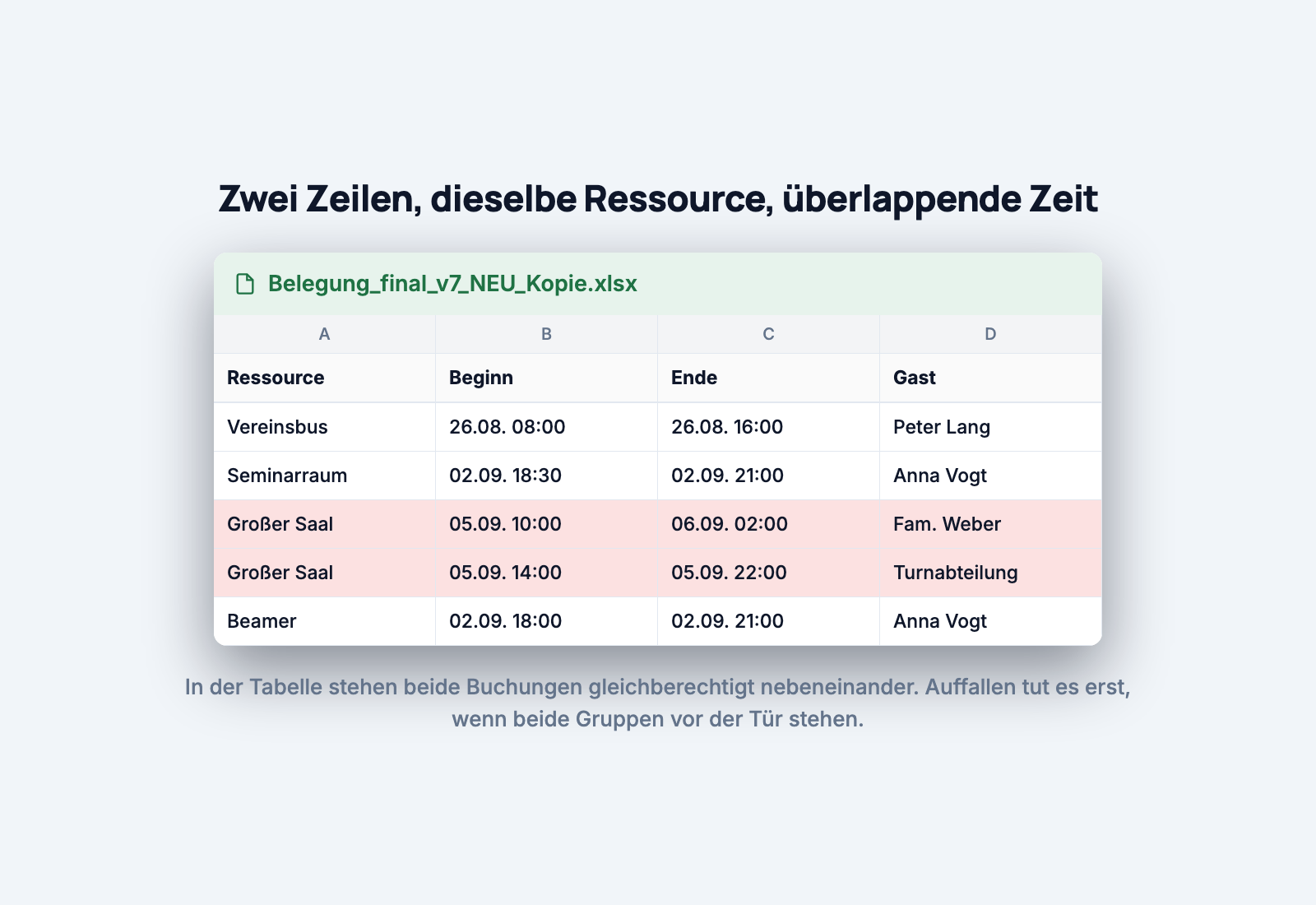
The preview also checks whether two rows in the file overlap in time on the same resource. The two red rows from the picture above would not both get through: the second gets an error, and you settle before the import who really has the hall that Saturday.
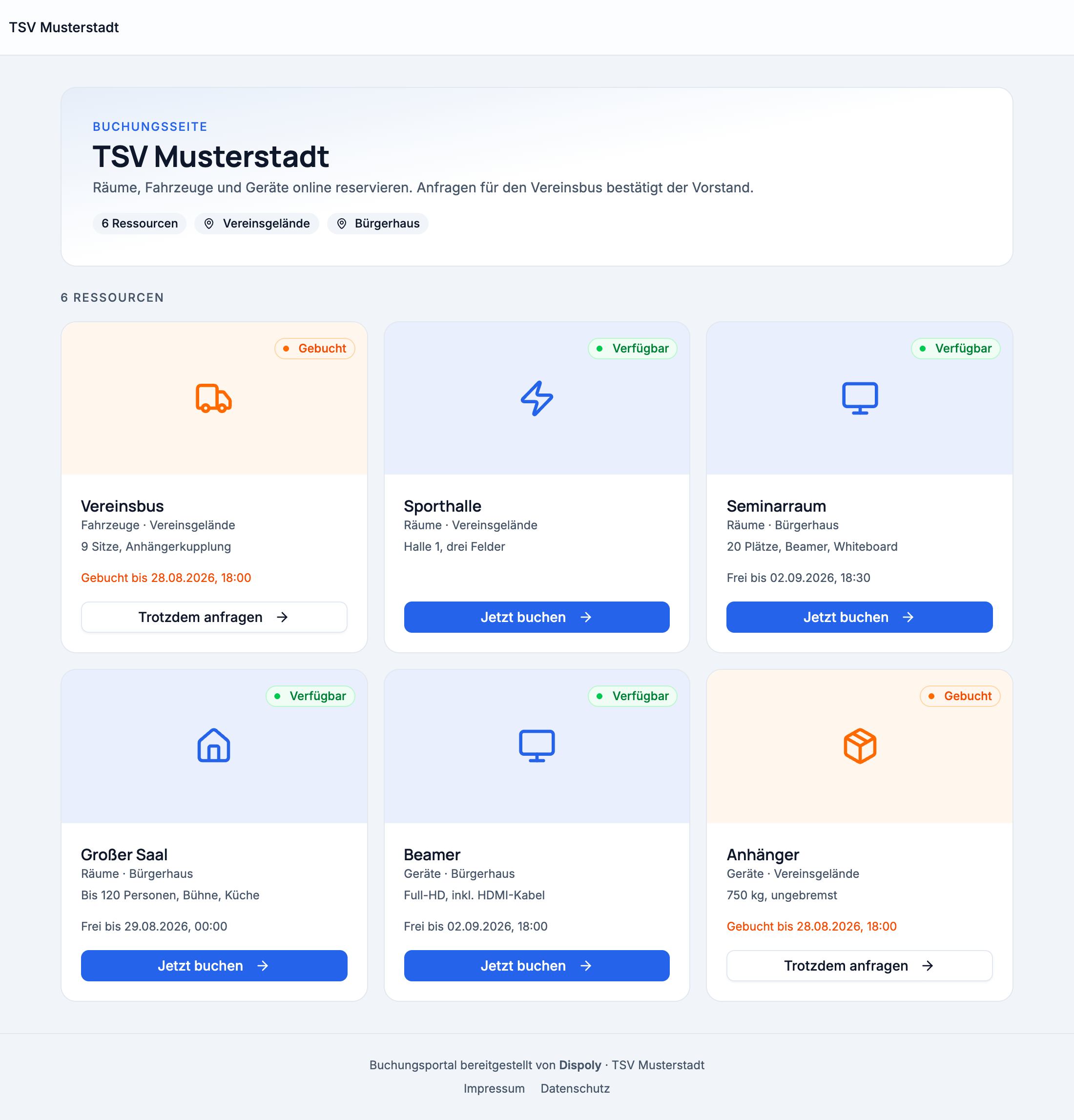
After the import, your list is a booking calendar that everyone sees at the same time. From here, two things pay off that the file never could: a booking page for everyone without a login, via link or embedded on your website, and a QR code where the question comes up, on the door or on the vehicle.
And the double booking that nobody noticed in the spreadsheet is technically impossible from now on. Why that is so is explained in Avoid double bookings.
The file is too big or too long. Anything over 5 MB or 2,000 rows is rejected. With a history that long, it is worth taking over only the current and the coming year anyway.
Merged cells and multi-row headers cannot be read reliably by any import. One header row, data rows below it, that is the format.
One sheet with several tables: if a small side calculation sits to the right of the bookings, separate the two first.
Names that are almost the same. "Projector" and "Projector (new)" are two resources, "Projector" and "projector" are the same one. A quick look at the name column before the import saves cleanup afterwards.
The move consists of two uploads and a careful look at the preview. The rest is habit: stop looking at the file and look at the calendar instead, and enter phone requests there rather than on a slip of paper.
You do not have to delete the old file. Put it in the archive, nobody will need it.
What this looks like for clubs as a whole is on the solutions page for clubs, and for fire brigades on the page for fire departments.
Trying it costs nothing: no contract, no setup fee, 30 days free.